Key takeaways
- Your Google Business Profile performance report shows how people find your profile on Search and Maps and what they do next: view, call, ask for directions, visit your website or book.
- It’s only available for verified profiles, and it includes activity from Google Ads as well as normal search results.
- Several numbers are counted in ways that surprise owners. Views count each person once a day, and search terms arrive monthly, up to five days late.
- Watch actions, not views. Pick the one or two actions that bring you customers, compare them over months, and link the report to Google Analytics to see the full picture.
“Google says 4,000 people viewed our profile last month, but the phone didn’t ring 4,000 times. What am I actually looking at?”
This is one of the most common questions I get from owners who’ve just opened their Google Business Profile performance report. The numbers look impressive, but it’s not clear which ones matter or why they don’t match reality.
This guide walks through the report in plain English. You’ll learn where to find it, what each number counts, why some of them look wrong, which ones to watch for your type of business, and how to connect it to Google Analytics so you can see what happens after the click.
1. What are Google Business Profile insights?
Google Business Profile insights, now called the performance report, show how people discover your profile on Google Search and Maps and what they do next: calls, direction requests, website clicks, messages and bookings. It’s free, but only available for verified profiles.
The report used to be called “Insights”, which is why most people still search for that name. Google now calls it Performance. According to Google’s help page on performance, it highlights how customers use Search and Maps to find your profile and what actions they take once they do.
Three things to know before you start:
- You need a verified profile. Google only shows performance data for verified profiles. If your profile isn’t verified, start with our guide to Google Business Profile verification.
- You need to be signed in to the Google account that owns or manages the profile.
- It includes Google Ads. Google says the data includes views, searches and actions from both normal search results and Google Ads. If you run ads, your report isn’t purely “free” traffic.
To make it confusing, Google has also added a separate feature called Insights, which gives recommendations based on public information like your reviews, photos and local search trends. Google says it may not be available for all profiles. This guide is about the performance report, which is what most people mean.
2. How do you find your performance report?
On a computer, search for your business on Google, open your Business Profile and click Performance. In the Google Maps app, tap Business, then See more next to Performance. Choose a date range and apply it. You can also download the data as a spreadsheet.
Google’s steps are:
On a computer:
- Go to your Business Profile.
- Click Performance.
- Select a time period at the top.
- Click Apply.
In the Google Maps app:
- Tap Business at the bottom right.
- Tap See more next to Performance.
- Select a time period and tap Apply.
To download the data, go to Business Profile Manager on a computer, tick the profiles you want, then choose Actions and Insights, select a time frame and click Download report. This is useful if you manage several locations and want to compare them side by side, or want to keep your own monthly record.
A practical tip: always set the date range yourself. Comparing one month with the month before tells you little for seasonal businesses. Comparing this October with last October tells you much more.
3. What does each number in the report mean?
The report can show interactions, searches, views, directions, calls, website clicks, messages, bookings, products, menus and offers. Only the metrics that apply to your business appear. Actions like calls, directions and bookings matter more than views, because they show people taking a step towards buying.
Here’s what each one counts, from Google’s definitions:
- Interactions: a summary of all your interactions added together.
- Searches: the search terms people used to find your business.
- Views: how many people viewed your profile on Search and Maps.
- Directions: how many people asked for directions to your business.
- Calls: the number of times someone clicked the call button on your profile. You need your phone number on the profile for this to work.
- Website clicks: clicks on the website link on your profile.
- Messages: the number of different conversations through messages.
- Bookings: bookings people completed. This only works if bookings run through a booking provider connected to Google.
- Products: how many times customers viewed products sold at your location.
- Menus: clicks on your menu content, counted per person per day, including menu photos, links and structured menus.
- Offers: views and clicks on offers posted on your profile.
Google also notes that only metrics that apply to your business appear. A plumber won’t see menus. A restaurant might not see products.
4. Why don’t the numbers match what you expected?
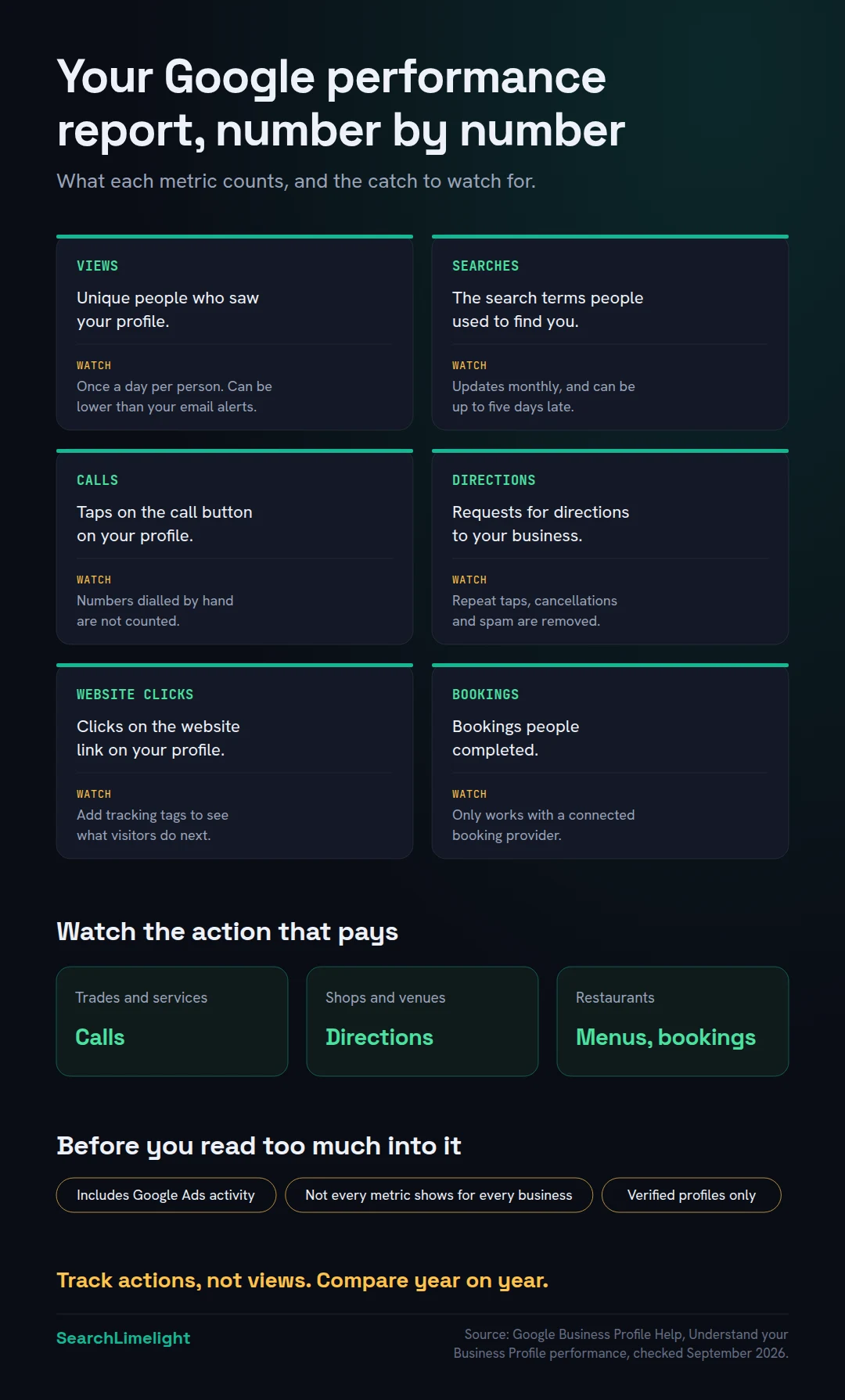
Because Google counts carefully and not always in the way you’d assume. Views count unique people, once a day. Calls count button taps, not every call. Direction requests exclude repeats and cancellations. Searches update monthly and can arrive up to five days late. And the report includes Google Ads activity.
This is where most of the confusion comes from. Here’s what Google says about each.
Views are lower than your email alerts. Google explains that the views figure counts unique visitors, counts a person only once a day even if they visit several times, and only counts views of your profile, not every appearance of your business on Google. So the number in your monthly email and the number in the report can differ.
Calls are lower than your real calls. The calls metric counts taps on the call button on your profile. If someone reads your number off the profile and dials it by hand, or finds it on your website, the tap never happens. So the report can show fewer calls than you actually get.
Directions dropped suddenly. Google says it changed how it counts direction requests to account for multiple taps, cancelled requests and spam. A fall after that kind of change may be the counting, not your business.
Searches look empty this month. The searches metric updates at the start of each month and can take up to five days to appear. Check it after the fifth.
Everything jumped when you started ads. Because the report includes Google Ads activity, starting or stopping a campaign can change your numbers without any change to your normal ranking.
The lesson: use the report to spot trends over several months, not to count exact customers. For exact figures, track calls and bookings in your own records too.
5. How do you use the search terms to win more customers?
Split the search terms into two groups: people searching your business name, and people searching for what you do. The second group shows where Google already matches you to new customers. Services missing from that list are the gaps to fix on your profile and website.
The searches list is the most useful part of the report, and the most ignored.
Google says search terms show whenever your profile appears for a certain search, and you can’t directly manage them. But you can learn a lot from them.
Branded searches are people who already know you, like “Harbour Electrical” or “harbour electrical durbanville”. (Harbour Electrical is an invented electrician we use as an example.) These show that past customers, referrals and word of mouth are working.
Discovery searches are people looking for what you do, like “electrician near me”, “emergency electrician” or “geyser installation”. These are new customers who didn’t know your name. This group matters most for growth.
Three ways to use the list:
- Find missing services. If you install EV chargers but “ev charger installation” never appears, Google may not connect you with that service. Add it to your profile’s services and give it a clear page on your website.
- Check your category. If most discovery searches are for something that isn’t your primary category, your category may be wrong. Our Google Maps ranking guide explains how to check it.
- Write for real words. The terms show how customers actually describe you. Use their words on your website, in your services and in your posts.
6. Which numbers matter most for your business?
The ones that match how customers become paying customers. For trades and services, it’s usually calls and website clicks. For shops and venues, directions. For restaurants, menus and bookings. Pick one or two, set a baseline, and compare them over months, not days.
Views are a vanity number. They tell you people saw you, not that they chose you. Focus on the actions that bring in money for your kind of business:
- Trades and home services: calls first, then website clicks. People who need an electrician tend to phone.
- Shops, venues and clinics customers visit: directions, then calls.
- Restaurants and cafes: menu clicks and bookings, then directions.
- Appointment businesses: bookings and website clicks, if your booking system is connected.
Then set up a simple habit:
- Record your chosen numbers monthly in a spreadsheet, or download the report.
- Compare with the same month last year, not just last month, to allow for seasons.
- Note what you changed that month: new photos, new services, a review drive, a new category.
- Look for trends over three to six months, not single spikes.
A few patterns worth knowing:
- Discovery searches rise but calls don’t: people are finding you and choosing someone else. Look at your reviews, photos and posts.
- Calls drop while views hold steady: check the phone number and hours on your profile first. A wrong number or “closed” hours can quietly cost you calls.
- Everything drops at once: check whether your profile is still verified and live, and whether you stopped a Google Ads campaign.
For the first pattern, our guide to Google Business Profile posts covers how to give profile visitors a reason to call.
7. How do you connect the report to Google Analytics and AI search?
Link your Business Profile to Google Analytics from your Analytics admin settings, so profile calls, directions and website clicks sit alongside your website data. Add tracking tags to your profile’s website link. Then check AI tools separately, because the report only covers Google Search and Maps.
Link to Google Analytics. Google now lets you connect your Business Profile to Google Analytics. You need an administrator or editor role in the Google Analytics property and to be an owner or manager of the profile. The link is set up inside Google Analytics:
- Open the Admin page in Google Analytics.
- Under Product links, click Google Business Profile links.
- Click Link and select your profiles.
- Review the data sharing information and confirm.
Google says data such as interactions, website clicks, calls, directions, messages, bookings and menu clicks is then shared with Analytics. One Analytics property can be linked to several profiles, and a banner appears on your performance page while the link is active.
Tag your website link. Add tracking tags, called UTM parameters, to the website address on your profile, for example example.co.za/?utm_source=google&utm_medium=organic&utm_campaign=gbp. Google Analytics will then show you what visitors from your profile do on your website, such as filling in a contact form.
Try Gemini, if you have it. Google says you can now connect your Business Profile to the Gemini web app and ask about your performance metrics and search keywords. It’s being released gradually.
Remember what the report can’t see. It only covers Google Search and Maps. Customers also find businesses on Apple Maps and in AI tools like ChatGPT. Apple has its own location insights, covered in our guide to getting your business on Apple Maps, and how to check your AI visibility covers the AI side.
What to do this week
- Open your performance report and set the date range to the last full month.
- Download the data and start a simple monthly record.
- Write down last year’s figures for the same month, if you have them.
- Split your search terms into branded and discovery searches.
- List one service missing from the search terms and add it to your profile and website.
- Add tracking tags to your profile’s website link.
- Link your profile to Google Analytics, or ask whoever manages your Analytics to do it.
Frequently asked questions
Where did Google Business Profile Insights go?
Google renamed it Performance. Open your Business Profile on Google Search and click Performance, or in the Google Maps app, tap Business and then See more next to Performance. Google also has a newer Insights feature with recommendations, which isn’t available for every profile.
Why can’t I see my performance data?
Google only shows performance data for verified profiles, and you must be signed in to the account that owns or manages the profile. If both are true and data is still missing, the profile may be new, or the metric may not apply to your business.
Is the Google Business Profile performance report free?
Yes. Every verified Business Profile gets the performance report at no cost. Linking it to Google Analytics is free too. You only pay if you choose to run Google Ads.
Why are my views lower than my monthly email says?
Google says the views metric counts unique visitors, counts each person once a day, and only counts views of your profile. The email may count differently, so the two numbers won’t always match.
Does the report include Google Ads?
Yes. Google says performance data includes views, searches and actions from both normal search results and Google Ads. Keep that in mind when you start or stop a campaign.
Can I see which competitors show up for my searches?
Not in the performance report. It only shows data about your own profile. To see who ranks around you, use a grid rank checker or search from different locations.
What’s a good number of calls or views?
There isn’t a universal benchmark. It depends on your industry, area and competition. The useful comparison is your own business over time: the same month this year and last year, before and after a change.
Not sure what your numbers are telling you?
A performance report is only useful if you know what to do with it. Our free audit checks your Google profile, rankings across your area, website and AI visibility, and turns your numbers into a short list of fixes.
Book a free discovery call and choose the audit that fits: AI Visibility & GEO, SEO, or Local Business SEO. No pitch until you’ve seen the gap.
Related reading
- Google Business Profile posts: what to post, and what Google won’t allow
- Apple Business Connect is now Apple Business: how to get your business on Apple Maps
- Google Maps ranking: why you’re not in the map pack, and how to fix it
About the author
Bantu Nonyukela is the founder of SearchLimelight. He has spent ten years in SEO, after starting out as a front-end developer, and is a Toptal-verified SEO expert. He helps small and medium businesses in the United States, Australia, the United Kingdom and South Africa get found in search and named by AI. Connect on LinkedIn
Sources
- Google Business Profile Help, Understand your Business Profile performance and insights: support.google.com
- Google Business Profile Help, Connect your Business Profile to Google Analytics: support.google.com
- Google Business Profile Help, Manage your Business Profile on Google with the Gemini web app: support.google.com
- Google Business Profile Help, Tips to improve your local ranking on Google: support.google.com
- Google Business Profile Help, Verify your business on Google: support.google.com
- Apple Business, launch announcement, March 2026: apple.com