Key takeaways
- You need to verify your Google Business Profile before you can manage it properly. Verification proves you own or represent the business.
- You can’t choose your method. Google picks from video recording, phone or text, email, live video call and postcard, based on your business type, location and details.
- When video is offered, Google recommends it. The video must be recorded live on your phone, unedited, at least 30 seconds long, and show your location, your business and proof you run it.
- Google says reviews take up to 5 business days. If verification fails, Google tells you why, and you can usually fix it and try again.
“I’ve recorded the video three times. Google keeps saying it can’t verify us. What am I doing wrong?”
I hear this from new clients all the time. Verification used to mean waiting for a postcard with a code. Now many businesses are asked to record a short video, and plenty fail the first attempt for small, fixable reasons.
This guide explains how verification works today, which methods you might see, exactly what Google wants in a verification video, and what to do when it doesn’t go through. It doesn’t cover suspended profiles. If your profile was working and has been taken down, read Google Business Profile suspended? How to fix it and appeal instead.
1. What does Google Business Profile verification do?
Verification proves to Google that you own or represent the business on the profile. Until you verify, you can’t fully manage how your business appears on Google. Once verified, you control your name, hours and details, can reply to reviews and can add people to help manage it.
Google’s verification help page puts it simply: to edit your business information and interact with customers, you need to verify. Verifying gives you ownership of the profile.
Your profile is the listing in Google Maps and the map results. Google says it ranks local results on relevance, distance and prominence, and an unverified profile can’t do much to help with any of them.
Before you start, get two things right.
Use the right Google account. Google needs a Google account to create or claim a profile. You can use a Gmail address or link your company email to a Google account. Use an account that belongs to the business, not a staff member’s personal one, so access doesn’t leave when they do.
Search for your business first. Google may already have a profile for you, built from other sources. Search your business name and town on Google. If it’s there, claim it rather than creating a new one. Google’s help explains how to add or claim your Business Profile. A second profile for the same business causes problems later.
2. Which verification methods does Google offer, and can you choose?
No, you can’t choose. Google decides which methods you see based on your business type, public information, region and opening hours. The options are video recording, phone or text, email, live video call and postcard. Some businesses need more than one. When video is offered, Google recommends it.
This surprises most owners. Google’s help page is clear that verification methods are chosen automatically and can’t be changed. You’ll see your options when you select Get verified on your profile.
The five methods are:
- Video recording: a short live video, recorded on your phone, showing your location, business and proof you manage it.
- Phone or text: a code sent to your business phone number by call or SMS.
- Email: a message sent to an email address shown on the verification screen.
- Live video call: a call with a Google support representative, during your business hours.
- Postcard: a code posted to your business address.
If you see more than one option, pick the one you can complete most reliably. Google recommends video when it’s available. If you see only one, that’s the route. Google asks you to try the methods offered first, and says that makes it easier for its support team to help if you get stuck.
A useful shortcut: Google says it sometimes verifies a profile instantly, for example when you’ve already verified your website in Google Search Console. It’s free, so set it up first.
3. How do you pass Google Business Profile video verification?
Record a continuous, unedited video of at least 30 seconds, live on your phone through your Business Profile. Show three things: where you are, that the business exists, and that you manage it. Your signage must show the same name as your profile. Plan the video before you press record.
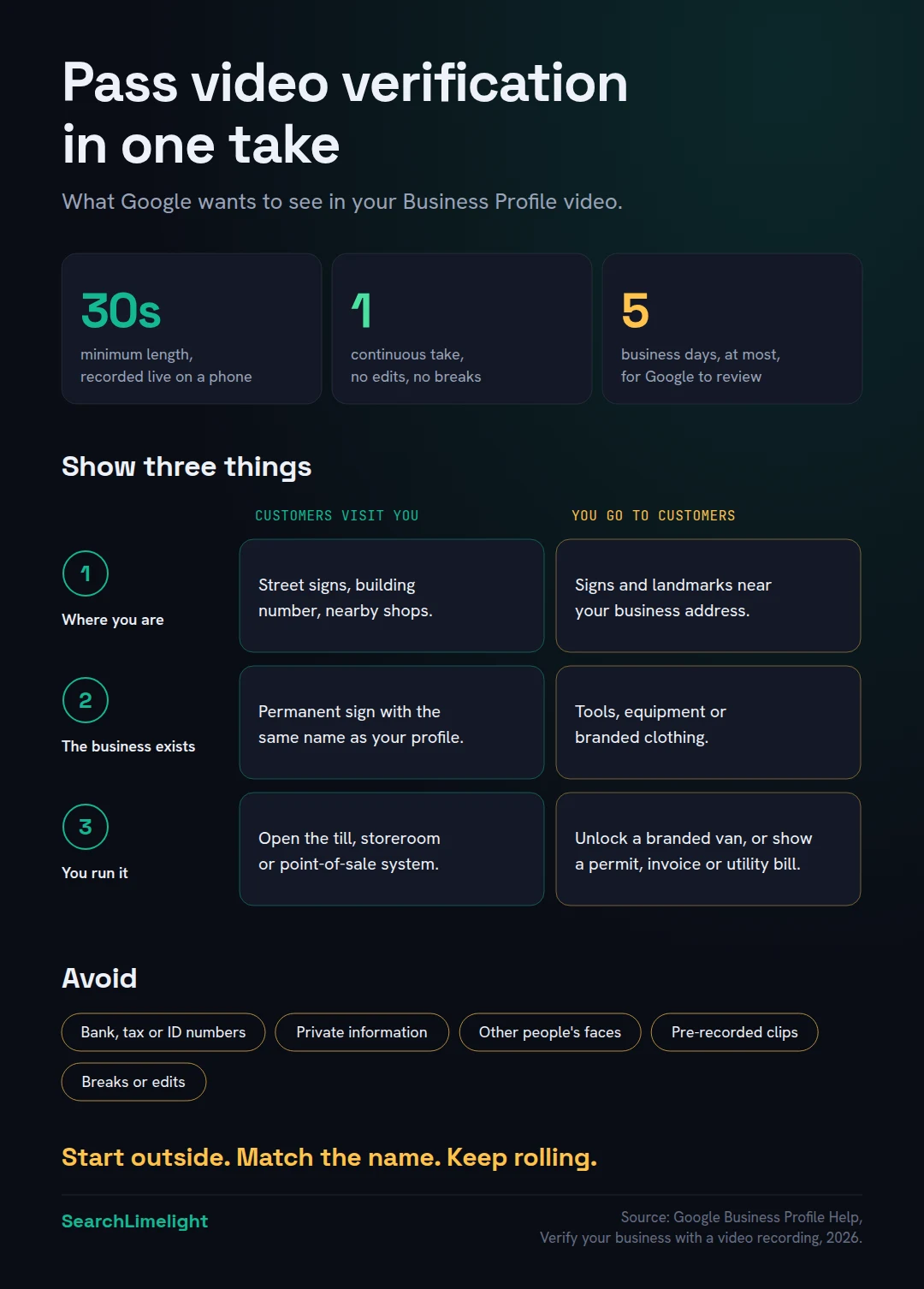
Google recommends video whenever it’s offered. Its video verification guide sets out the rules.
The recording itself must be:
- captured live through your Business Profile on a mobile device, not recorded earlier and uploaded
- one unedited, complete take with no breaks
- at least 30 seconds long
It must not show bank account, tax or ID numbers, private information about you or others, or other people’s faces. Film when the premises are quiet, or keep the camera away from customers and staff.
What to show depends on your business type.
If customers visit you (a storefront):
- Where you are. Start outside. Film the street sign, your building number and neighbouring shops.
- That the business exists. Film your signage. Google says the name must be on a permanent fixture, like a signboard, wall or window, and must match the name on your profile.
- That you manage it. Show something only staff can access. Google’s examples include opening the till, a kitchen or storeroom, or using your point-of-sale system.
Google adds that if your business doesn’t have permanent signage, you should list it as a service-area business instead.
If you go to customers (a service-area business):
- Where you operate. Film street signs or landmarks near your business address. If you work from home, Google says you can film landmarks and signs in your immediate neighbourhood.
- That the business exists. Show your tools, equipment, workspace, business cards or branded clothing.
- That you manage it. Unlock your branded van, show yourself doing the work, or show a business permit, invoice or utility bill in the business’s name.
For an invented example: Harbour Electrical, a one-van electrician in Durbanville, would film the street sign on the corner of the owner’s road, walk to the van, unlock it, show the branded doors and test equipment, then show an invoice with the business name. That’s roughly 40 seconds.
Before you record, check the name. The name on your signage, van or documents should match your profile exactly. Google requires them to match.
4. How do phone, email, live video call and postcard verification work?
Phone and email are the quickest: you get a code or link and enter it. A live video call needs you at the business during opening hours. A postcard carries a five-digit code, usually arrives within 14 days, and expires after 30. Don’t edit your profile while you wait.
Phone or text. Select Get verified, then Phone or SMS, and enter the code you receive. Google warns that automated phone menus won’t pass the code on. If your business line goes to a menu or a call centre, choose SMS, or make sure a person can answer.
Email. Select Email and follow the steps in the message. You can only use the email address shown on the verification screen.
Live video call. This is a video call with a Google support representative, and it’s only available during your business hours. Be at the business, ready to show the same three things as a recorded video: your location, your business and proof you manage it.
Postcard. If you’re offered a postcard, Google’s help sets out some strict rules:
- check your mailing address before you request the code
- most codes arrive within 14 days
- don’t edit your business name, address or category while you wait, or the code won’t work
- don’t request a new code, because that cancels the first one and starts the wait again
- codes expire after 30 days
- enter the five-digit code on your profile when it arrives
Keep every code private. Google says it will never ask for your verification code, and you shouldn’t share it with anyone, even people who help manage your profile. Treat anyone calling “from Google” and asking for your code as a scam.
5. How long does Google Business Profile verification take?
After you complete a method, Google says its review takes up to 5 business days, and occasionally longer. Postcards add their delivery time, usually up to 14 days. Some profiles are verified instantly, for example when the website is already verified in Google Search Console.
Here’s how the timing adds up:
- Phone, text or email: the code arrives within minutes, then Google reviews your details.
- Video recording: Google says the review can take up to 5 business days.
- Postcard: up to 14 days for the code to arrive, then Google’s review.
- Instant: possible when you’ve verified your website in Search Console, or use Google’s bulk verification for many locations.
When it’s done, you’ll get a confirmation email.
Don’t make big changes while you wait. This matters most for postcards, but it’s a good rule for every method. Get your name, address and category right before you start, then leave them alone until you’re verified. You can add photos, services and a description afterwards.
If a week passes with no answer, check your profile for a Review issues notice or a Get verified button (see section 6).
6. Why does verification fail, and how do you fix it?
Most failures come from a video that doesn’t show enough: the business name isn’t visible, the surrounding area is missing, or there’s no proof you run the business. Google tells you why. Fix that specific issue, record again including everything from the first video, or try another method if one is offered.
There are three signs that verification hasn’t gone through.
A “Review issues” notice. Google says this means your video wasn’t accepted. Tap Review issues to see why. Google’s own examples of reasons are:
- business name not visible on the storefront
- no nearby area shown
- missing proof of authorisation to operate the business
Then record a new video. Google asks that it includes everything from your first video, plus whatever was missing. Don’t just film the missing piece.
The “Get verified” button comes back. This means Google couldn’t completely verify your business. Try again, and if another method is now offered, try that one.
A request for more information. If you’ve recently changed your business details, Google may ask you to re-verify. Select Get verified and follow the steps shown.
Common reasons videos fail:
- Starting indoors. Begin outside, where the street and your sign are visible.
- A name mismatch. “Harbour Electrical” on the van and “Harbour Electrical Services Durbanville” on the profile don’t match. Fix the profile name so it’s your real business name, as Google’s guidelines require.
- Temporary signage. A banner or A-frame board isn’t a permanent fixture. If you don’t have a permanent sign, you may need to list as a service-area business.
- Stopping and restarting. Any break in the recording fails the “one continuous take” rule.
- Nothing only staff could do. Walking past the counter isn’t proof. Open the till or the storeroom.
Businesses that can’t be verified. Google says businesses that operate only online, with no in-person service, aren’t eligible for a Business Profile at all. Virtual offices and PO boxes aren’t allowed as addresses under Google’s guidelines either, so a video filmed there won’t help. We cover the full list of eligibility traps in 12 Google Business Profile mistakes that quietly cost you calls.
7. What if someone else has already verified your business?
Request ownership through Google. A former employee, an old agency or a previous owner may control the profile. Google has a process for requesting ownership, and a separate one for duplicate profiles. Don’t create a second profile to get around it, because duplicates cause more problems than they solve.
Ask them first. If you know who it is, ask them to add you as an owner, then transfer primary ownership to you. Google explains how to add owners and managers and how to transfer primary ownership.
If you can’t reach them, use Google’s request ownership process. Google walks you through the steps from there.
If there are two profiles for your business, Google’s help on duplicate profiles and ownership issues explains how to sort it out. Creating a third profile to escape the problem only makes it worse.
Once you’re verified, protect it. Add a second trusted owner from inside the business, and give agencies manager access rather than ownership. Then the next time someone leaves, you don’t have to start again.
What to do this week
- Search for your business on Google and check whether a profile already exists.
- Sign in with a Google account that belongs to the business, not a personal one.
- Fix your profile name so it matches your signage, van or documents exactly.
- Verify your website in Google Search Console, which can sometimes speed things up.
- Select Get verified and note which methods Google offers you.
- Plan your video on paper: location, business, proof you manage it, at least 30 seconds.
- Add a second trusted owner as soon as you’re verified.
Frequently asked questions
Can I verify my Google Business Profile without a postcard?
Usually, yes. Most businesses are now offered a video recording, and some get phone, text, email or a live video call. You can’t choose the method yourself. Google says postcards aren’t available for all businesses, and it recommends video whenever video is offered.
How long is a Google Business Profile video?
Google says it must be at least 30 seconds long, recorded live in one continuous take with no editing. What matters is that it shows your location, your business and proof you manage it.
Can I verify a home-based business?
Yes, if you serve customers in person. Google says service-area businesses run from home can film landmarks and signs in their immediate neighbourhood, then show tools, equipment or documents. Don’t show your home address on the profile if customers don’t visit you there.
Why was my verification video rejected?
Google tells you under Review issues. Common reasons include the business name not being visible on your signage, no surrounding area shown, or no proof you manage the business. Record a new video with everything from the first one, plus what was missing.
Can I change my business details during verification?
Avoid it. With postcards, editing your name, address or category means the code won’t work. For other methods, changes can trigger extra checks. Get your details right before you start, then wait until you’re verified.
Can an agency verify my profile for me?
It’s safer to verify it yourself, because the verification proves you run the business. Once you’re verified, add your agency as a manager. Keep ownership inside the business so you never lose access.
Can an online-only business get a Google Business Profile?
No. Google says businesses that only operate online, with no in-person service, aren’t eligible for a Business Profile and can’t be verified. Focus on your website and other channels instead.
Stuck on verification?
Verification is often the step where a local business stalls for weeks. Our free audit checks your Google profile, listings, website and AI visibility, and shows you exactly what’s blocking you.
Book a free discovery call and choose the audit that fits: AI Visibility & GEO, SEO, or Local Business SEO. No pitch until you’ve seen the gap.
Related reading
- 12 Google Business Profile mistakes that quietly cost you calls
- Google Business Profile suspended? How to fix it and appeal
- Local SEO checklist: 40 checks for small businesses
About the author
Bantu Nonyukela is the founder of SearchLimelight. He has spent ten years in SEO, after starting out as a front-end developer, and is a Toptal-verified SEO expert. He helps small and medium businesses in the United States, Australia, the United Kingdom and South Africa get found in search and named by AI. Connect on LinkedIn
Sources
- Google Business Profile Help, Verify your business on Google: support.google.com
- Google Business Profile Help, Verify your business with a video recording: support.google.com
- Google Business Profile Help, Add or claim your Business Profile: support.google.com
- Google Business Profile Help, Request ownership of a Business Profile: support.google.com
- Google Business Profile Help, Resolve duplicate profiles and ownership issues: support.google.com
- Google Business Profile Help, Add and remove owners and managers: support.google.com
- Google Business Profile Help, Transfer primary ownership: support.google.com
- Google Business Profile Help, Guidelines for representing your business on Google: support.google.com
- Google Business Profile Help, Improve your local ranking on Google: support.google.com
- Google Search Console Help, Add a website property: support.google.com